 paper2epub
How to read arXiv papers on a Kindle
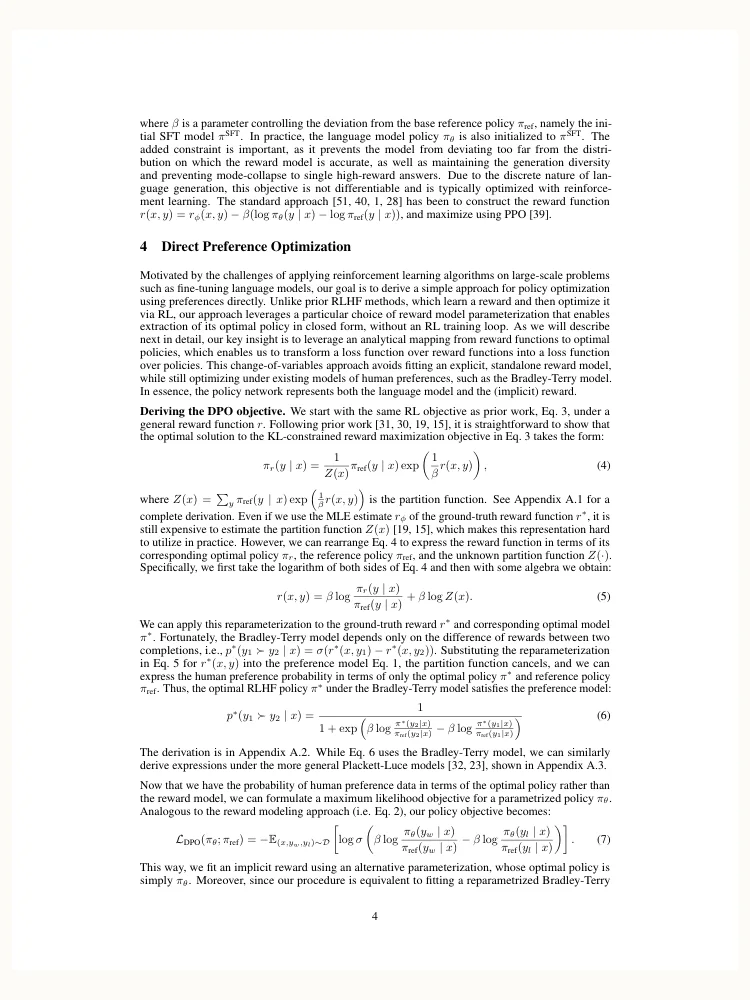
A Kindle is a lovely place to read a paper: no notifications, no tabs, a screen that’s easy on the eyes. But send it the PDF straight from arXiv and you get the whole page shrunk to six or seven inches, two columns of tiny type that you end up zooming into and dragging around. Here’s how to get the paper onto your Kindle as a proper e-book instead, in three steps.
The PDF
The EPUB
1. Download the PDF from arXiv
On the paper’s abstract page, the View PDF link gives you the file. The address works the other way round too: arxiv.org/abs/2305.18290 becomes arxiv.org/pdf/2305.18290.
Any paper that was born digital works the same way: journal articles, conference papers, preprints from other servers. What doesn’t work is a scan, which is only pictures of pages, with no text to rebuild.
2. Turn it into an EPUB
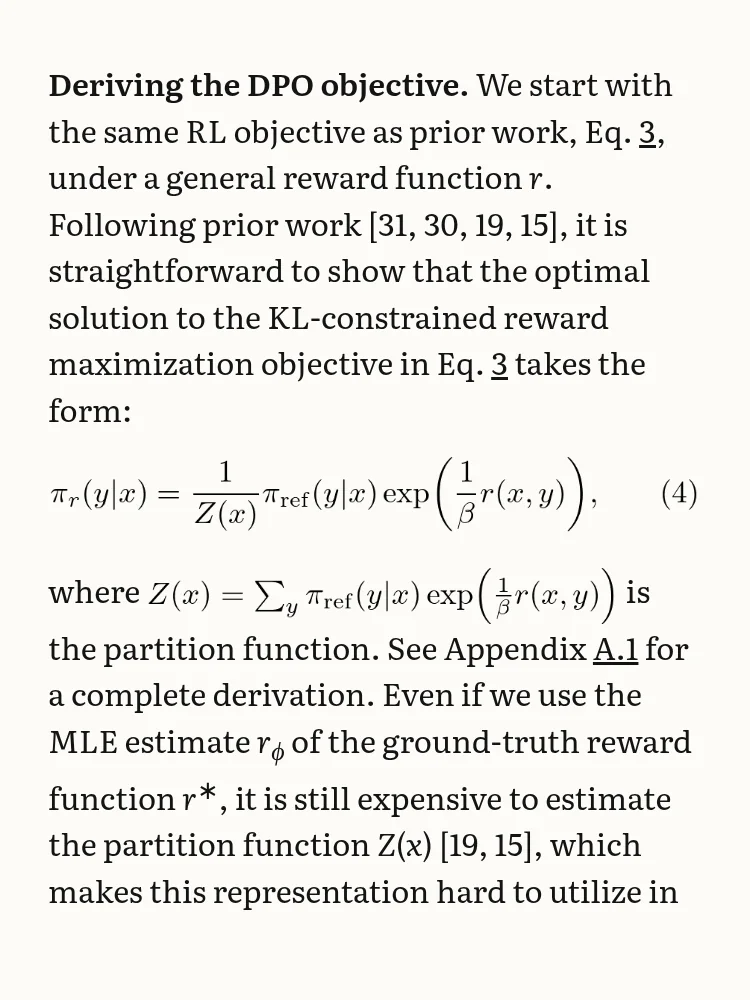
Drop the PDF on paper2epub. About a minute later you have an EPUB: the paper’s text laid out as a book, its equations typeset with LaTeX, its tables as tables, and its citations, footnotes and cross-references as links. You can read it right there in the browser to check it, and download it.
You don’t have to wait with the tab open. The conversion carries on, and the page shows your papers when you come back.
3. Send it to your Kindle
Amazon’s Send to Kindle takes EPUB files and turns them into Kindle format on the way. There are three ways in:
- The web page. Go to Send to Kindle on your Amazon site (amazon.com/sendtokindle in the US), sign in and drag the EPUB in. The easiest on a computer.
- The apps. Send to Kindle for Windows and Mac, and the Kindle app on a phone, which shows up in the share menu.
- E-mail. Every Kindle has its own address ending in @kindle.com. It’s in Manage Your Content and Devices → Preferences → Personal Document Settings, and so is the list of approved senders, where your own address has to be. Attach the EPUB and send it.
A few minutes later the paper is in your Kindle’s library, next to your books.
Reading it
The paper reads like any other book: you choose the font and the size, and the text follows. A few things make papers in particular nicer to read:
- Citations are links. Tap a reference number and you’re at the entry in the bibliography; the back button takes you to where you were.
- Footnotes pop up over the page instead of sending you to the end of the chapter.
- The table of contents has every section, so the experiments or the appendix are two taps away.
- Highlights and notes work as they do in any book.
Why not just send the PDF?
You can: Send to Kindle takes PDFs too. But a Kindle shows a PDF as a picture of each page. The text can’t reflow, so you’re left choosing between type that’s too small and zooming around the page. Amazon can also try to turn a PDF into Kindle text itself, but with two columns, equations and footnotes the result tends to come out scrambled.
On a Kindle Scribe, with its much bigger screen, a PDF is far more bearable. Even there, an EPUB lets you pick the size of the text. If you’re weighing up the options, I compare them all, k2pdfopt and Calibre included.